
Tuesday, January 10, 2012
Wednesday, August 10, 2011

Thursday, March 24, 2011
Autodesk has released Revit 2012 unto the public. Well, sort of. I've heard of it and seen reviews but could not find anything on the official website.
But in any case David Light has written a quite comprehensive review. Check it out.
From what I'm reading I can't wait to get my hands on this release. Especially the improvements for worksharing look really promissing.
I'll post my experiences once I make them.
Wednesday, March 2, 2011
OK, quick one.
I am placing Area Boundary Lines on an Area Plan, using Floors as the bases. And it kept driving me crazy that Revit won't snap to the Floor edges. Why?!

Well, it turns out that Revit automatically turns the option "Apply Area Rules" on, which means that it will only snap to walls according to the set area rules. Turning the option off allowed me to snap to everything again:

Wednesday, February 16, 2011
Whenever you create a new View via the Ribbon:

You get the following dialogue box:
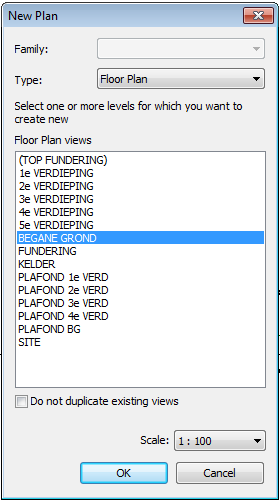
Here you can select for which level you want to create the View. This is the only time you will be able to set the level associated with this View! So choose wisely.
Let me repeat this: You will not be able to change the Level associated with this View!
As you can see here, the field for the associated level is grayed out.

This also means that when you duplicate this View, it will stay with this Level. No amount of renaming the View will change that!
So if you need a view of a different level with the same settings, make use of View Templates instead of blindly copying.
Thursday, February 10, 2011
Almost to the day one year ago I posted Part II of the catenary line. And since I got a comment on if I was ever going to finish it, I thought it about time.
Sadly I don't have the files anymore, but I'll discuss the technique I used back than. I just won't have pictures. Sorry.
To start off there is one addition I have to make to the last post: the parameter nr needs to be an instance parameter!
The next step is to open a new Conceptual Mass and start placing the family created in the previous post. Place the family on the x/z-plane with the origin as insertion point. By changing the nr parameter for each instance to a unique number (with the maximum of 8, since that is what we put down as nr_of_segs as a type parameter) the lines will move and adjust automatically.
At the end you should have a row of lines that form a catenary line. Play around with the parameters to get the exact shape that you want, import it into you project and use the lines to draw trusses, walls, sweeps, or whatever.
I hope this last step works without pictures. Should you have questions, please drop a comment and I'll try to answer them. Good hunting!
Wednesday, February 9, 2011
Getting the North Arrow right on my sheets was not a high priority for me up until now. I mean, if it's about right, it's OK. Right?
Wrong.
I realized that I rely heavily on north arrows put on a sheet by other people and I started asking myself, whether these people unknown knew what they were doing. So to be sure that others using my drawings get the correct information, I asked myself how to do this properly.
I started with getting a situation drawing from official channels. Here I know that North is North. I then proceeded to rotate my Project North so that the first setup of the building aligns with the official map. (Making sure that my View was set to True North.)

Now I know True North and Project North. The angle between them is something like 112,443599125 degrees. About. More or less. Something like that.
Right. Not much help there.
So instead of solving this with numbers I went ahead and drew a "north arrow" with reference planes in this view.

Problem solved.
I can now go into any view and I have my "North Arrow" point to True North. I can then place my North Arrow Symbol correctly on any sheet.

And if I had paid attention as to where I had placed these reference planes in relation to the drawing I might have had the correct insertion point on my sheet as well. But then, that would have required thinking and planning ahead...
Thursday, February 3, 2011
I came across this command in my View-tab called Show Hidden Lines and wanted to try it out.

The usage is pretty straight forward: click the command, select the element you want to be "transparent" and then select the element(s) you want to be visible. The result should look something like this:

Well, my colleague also tried it, but the dashed lines would not show up on his screen, even though it was the same file with the same view. Strange.
Even more strange: when printing the view, the lines appeared.
After some searching we found that he had Use Hardware Acceleration in his Options enabled, while I had not:

So, should you find yourself not seeing something on screen that you know should be there, play with this setting. It seems that there are still issues surrounding it.
Wednesday, January 26, 2011
I've run across a very informative graphic to explain how Revit is set up at the most basic level. I've polished things up a bit and here you are:

Monday, January 24, 2011
I've been following the BIM troublemaker for a while now, and he pulled another one out of the hat. For some light reading, just check out this:
http://bimtroublemaker.blogspot.com/2011/01/complex-rigging-and-built-up-forms-pt1.html
and
http://bimtroublemaker.blogspot.com/2011/01/complex-rigging-pt2-skin-that-sucker.html
I thought I was pretty savy with Revit, but the Troublemakes is in a class of his own. I stand amazed.
Thursday, January 20, 2011
In the past few days I've been back behind my computer, reviting away. And I have found an interesting way Revit understands the difference between Select All Instances and Count in schedules.
Today we needed to calculate the number of workspaces placed in an interior design for a client. So we created a furniture schedule with the fileds Family Name, Family Type and Count. In the options we chose not to Itemize Every Instance and sorted by Family and then by Type. So far so easy.
According to the schedule we had 150 workspaces.
But when I went to one if them and used the Right Click > Select All Instances > Entire Project I got 183 selections back.
Wait. What?
Well after some searching it turns out that Select All Instances > Entire Project will select everything and in all Design Options, whereas the schedule will give you the correct count for the selected Design Option.
Just one of those things that are logical from a certain point of view, but not readily obvious.
Monday, January 3, 2011
To all you Reviteers out there:
Happy New Year!

Friday, December 17, 2010
I am busy creating a schedule for an area plan. I need to get the number of trees that I need to cut down, can keep and plant new. For this I created a Planting family with a few type parametes that change the appearance of the tree (e.g. the Yes/No parameter kappen (which means to cut down in Dutch) is linked to the visibility of a cross across the tree symbol).
So far so good.
I can then create a schedule with my familty types and totals. Cool.

But now I want to only see the trees left at the end of the project.
One option would be to phase the trees (set the phase demolished parameter of all trees to be cut down to the phase of the new construction), but for other reasons I did not want to go that way.
So I figured I would simply set the filter of the schedule and filter out the appropriate family type. But, lo and behold, I don't get that option!

A quick Google-search reveals that this is not a bug but a feature (or something like that).
So for a workaround I am now using the Type Mark parameter, setting it to different values for the different family types. (The other option would have been to create my own shared parameter and attach it to both the project and the family, but I'm just lazy. Plus I can now use this to tag the trees as well.)

But I don't get why I cannot filter based on family type. What would have been the trouble with this? Can someone explain?
Wednesday, December 15, 2010
Once you know how the whole central file / local file business works (see my earlier post), it is time to see it in action and check out the advantages en the pitfalls of this system.
Some of the advantages of worksharing are clear:
- several people can work on the same project
- no need to shuffle multiple files
- always work on the most up-to-date version of the project
But working together on the same file also demands good commuunitcation between the users. For a smooth workflow it is important that you make clear guidlines and rules for such things as:
- who is working on what
- importing of families
- use of families
- family type naming conventions
- where to switch from 3D to 2D
In the past I have noticed that despite office standards each user is going about working with Revit and setting up their projects in a slightly different manner. This is a limited problem as long as only one person works on the project from start to finish, but once more draughtsmen get involved, the error ratio and the frustration levels grow exponentially.
This is why I find it imperative that one person is designated to "guard" the drawing. He or she will be responsible for the consistency of the file and will spend time on checking the work of others. In the beginning there will be a lot of checking and correcting, but as time goes on, this should diminish - as long as the errors are communicated with the rest of the group!
Unfortunately, Autodesk does not offer an easy tool for communication between the different users working on a project. Yes, there is the Worksharing Monitor (see post here), which I recommend to use always. But there is no quick communication tool built into this (think chat-client).
What I have done in the past is to introduce a Jabber server and client (an internal chat program that relies on a local server instead of ICQ, MSN, etc). This made work a lot easier and faster, especially when the different users don't share the same office space. Give it a try.
Tuesday, December 7, 2010
Working on projects with several people at the same time can be a challenge, especially if the projects get fairly big and involved. Coordination and project consitency suddenly become very important.
To make this scenario managable, Autodesk introduced Worksharing & Worksets into Revit. I will cover the basic setup in this post and go into the nitty gritty of creating and managing worksets in the second.
So, first off, what is Worksharing? Worksharing means what is says: multiple users working together on one project, in one file.
Wait! What? One file? That's not possible! Just look at any other software out there! You cannot open one file more than once.
That is (sort of) correct. Windows will only grant one person write access to any file at any one time. So it would be almost impossible to open one file from multiple computers and expect everything to go smoothly.
Revit solves this by introducing the concept of a central file (residing on the server) as a sort of overseer and multiple local files (residing on the workstations of the users) as the actual files people work in.
The central file is located on a central location (hence the name), for example the office servers. It contains the model information and is in charge of allowing (or disallowing) users to make changes to objects, views, layouts etc. It does so by "lending" out objects to a specific user, thus allowing him or her to edit said object and denying everyone else access. Once that user is done with the object he or she reliquishes the hold on the object and returns it to the pool of editable objects.
For example: UserA wants to move an interior wall 50cm to the right. He grabs the wall and moves it. Revit as now determined that UserA wants to edit this wall and assigns the wall to UserA. UserA now has full control over the wall. UseressB now wants to move the wall 75cm the other way. She cannot do that, because Revit has locked the wall. Only after UserA relinquishes his hold on the wall will UseressB be able to do the change she wants.
The central file is responsible for this sort of rights management.
The local file(s) is located on the local harddisk of the user and is there to facilitate the rights management as much as enable quick working. It also contains a copy of all model information which has to manually be updated. This is to prevent data-loss should the connection to the central file be severed. The local file has the same name as the central file, but with _username added to the end.
Tuesday, October 5, 2010
Since I have been slow to discover new things that I absolutely have to share with the rest of the world (who propably already knows...) I figured I will start writing a few things about basic concepts in Revit. My aim here is to further understanding of the program so that you don't just know the "to do this follow these steps" but the "why" behind it.
Today we'll start with something relatively simple: Views and Schedules. What are they, what are they for and how do you use them.
The first thing we need to let go as we transition from a 2D/3D CAD program (like AutoCAD) into a program that uses a Building Model (like Revit) is the way we view a drawing. In a 2D program a drawing is just a digitized version of lines on paper, which represent a floor plan or an elevation.
In Revit that is not true.
In Revit you build the (almost) entire building inside the computer, putting the information into a database that runs in the background. This means that instead of two lines representing a wall in the floor plan I put into the database an object that is a wall with a certain length, height, position in the building, structure and other characteristics. And from this information Revit will then calculate a drawing that shows the parts of the building that fall within the visible range, e.g. a floor plan or an elevation.
Once we get our minds around this we start to see the possibilites opening up. We have a database! And databases are great not only for storing information but also retrieving the specific information you need.
One way of retrieving this information is by creating Views. This is basically a way to ask the database to "show me any and all objects that I can see from this point, looking in this direction for this distance." This specified by the type of View (Floor Plan, Elevation, Section, etc), the View Range, the Far Clipping, etc. Any 3D object that is in the line of sight will be displayed. I can then further customize each view with Annotations (we'll get to that later), shadows, and a few other things, to suit my needs.
The great thing of this is also that when I change an object in the model - move a wall - the change is refelcted in all views where this object is visible. I also means that I can have multiple plans of the same section of the building - floor plan of the ground floor - that convey different information - electrical installations, square meters, wall and floor finishes - without having to redraw them every time. This reduces the danger of drawing errors considerably.
Another way of retrieving information form the building database is using schedules. This is a non-graphical way of looking at the same data, and so as architects and draftspeople something we are not really used to. But tell the builder who does the calculations on how expensive the project is going to be that you can give him exact numbers on the square meters of brick wall or the number of doors and he well love you forever (or at least until he sees what the costs of your funky design are...).
So stop seeing schedules as something alien and weird and start seeing them as just another way of presenting your design. In the end there are (unfortunately) a lot more people interested in the numbers than in the esthetics.
This concludes my first article on Basic Concepts in Revit. As you can see this is all theoretical and no hands-on. I will try to write some hand-on instructions on the concepts that I cover in other posts. If you have some concept of Revit that you are struggling with, please feel free to leave a comment.
Thursday, September 30, 2010
Austodesk has release the 2nd update for Revit 2011. Contrarty to intuition, this can be found under the product download section, rather than the update section for Revit Architecture on the Autodesk site.

At the same time Autodesk has released the latest Subscription Advantage Pack for Revit 2011, including a new type of server for central files, a conceptual energy analysis tool and a set of extensions. I am now downloading all that and will report on my progress later.
Tuesday, September 28, 2010
OK, so this has nothing to do with Revit, and I am sorry. But I am an avid supporter of OpenOffice and I think it is important that such a project gets all the support it can get.
You might note that I have added a new widget to the sidebar, where you can sign a petition supporting the formation of an independant foundation (called the Document Foundation) which will continue to develop OpenOffice (or rather LibreOffice at the moment) without Oracle looking over their shoulder.
Feel free to sign the petition as well.
OK, and now back to Revit...
Tuesday, September 21, 2010
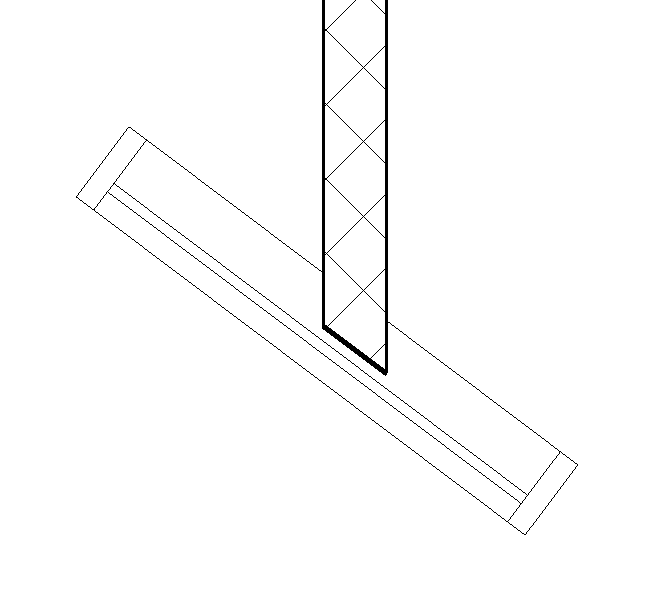
We are in the process of designing a ronded building with an all-glass extgerior. This leads to the situation that an interior wall needs to end at a glass panel. Revit presents with this solution:

The solution that I came up with is a bit of a workaround, but it gets the job done.
First I created a new, very thin wall.

I then drew the thin wall at the angle that the interior wall was supposed to be fased at (parallel to the existing Curtain Wall):

Having done this I cleaned up the result with the Trim tool and adjusted the length of the thin wall:

And that's it. Job done.
Friday, August 27, 2010
 Since I like to work with Revit on my laptop, I was highly irritated when Autodesk decieded to switch to an online-help-only model. It meant that I had to be online to get the "help" (for the times that the Revit-help was actually helpful - not very often).
It seems I am not the only person with this issue and so Autodesk published an article on how to change the online-help to a local help-file. See the article here.
It basically boils down to adding three lines to the Revit.ini file.
Simple as that.[Documentation]
UseHelpServer=1
HelpBrowser=0
On a personal note: This is my 100th post. Happy Birthday to me!


 Posts
Posts


